EVSE Charging Dock Documentation
We appreciate you selecting EVSE Charging Dock! The goal of this tutorial is to take you step-by-step through the complete theme for WordPress setup and customization process. It addresses a number of topics to make getting started simple. Kindly check out our Contact Area for help whether you're facing any inquiries that aren't covered in this article. Thank you for your support!
Description
EVSE Charging Dock is a website theme designed for businesses and organizations involved in electric mobility and charging infrastructure. It includes layouts suitable for charging station listings, service details, pricing information, contact pages, and business profiles. The design supports responsive viewing across desktops, tablets, and mobile devices, helping users access charging information on different screen sizes. The theme can be used by EV charging station owners, electric vehicle manufacturers,renewable energy companies, green mobility startups, and automotive service centers that need an organized online presence. It includes customizable homepage sections, banner areas, service blocks, testimonial sections, and integrated navigation menus for easier content management.EVSE Charging Dock supports blog integration for sharing updates about charging technology, sustainability initiatives, or station maintenance information. It is compatible with commonly used plugins for forms,galleries, and social media integration. The theme also provides typography settings, color controls, and widget-ready sections to adjust the appearance according to business requirements. Its structured layout helps businesses present charging services, operational details, and location-based information in a clear format.Establishment of this a theme
a. via the WordPress Administration
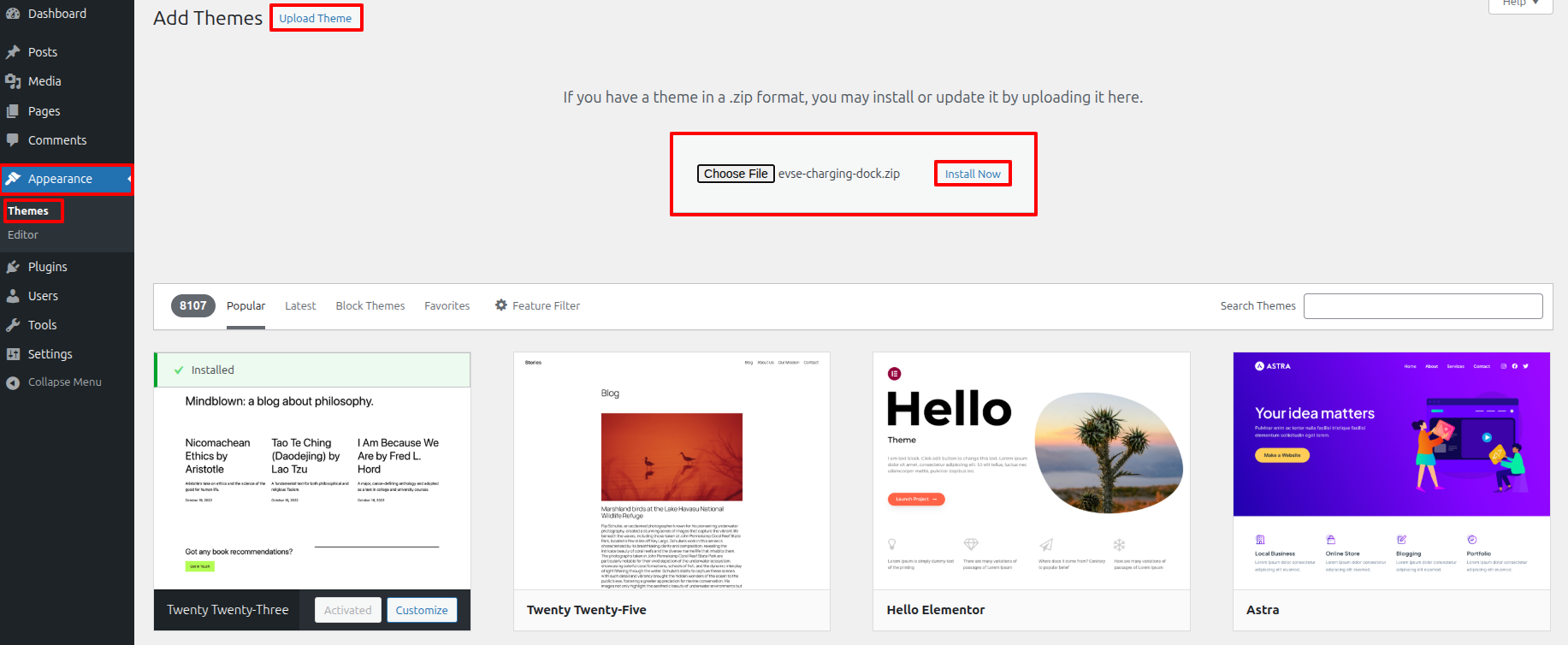
- Along Your a dashboard on the WordPress platform, pick Appearance > Themes, or finally hit the Add New box.
- Choose a Upload Theme alternate.
- Find the theme file that has been unzipped on your desktop or laptop by pressing the Browse option.
- Locate the evse-charging-dock.zip file, pick it, then press OK.
- Whenever the installation is complete, tap the Install Now box.
- After installation, add the theme to your WordPress website by clicking the Activate link.
Featuring an FTP client for installation process
While you have FTP authorization for accessing your website's hosting server as well as a client that supports FTP installed, such FileZilla, you can use this method to upload your theme..
- Unpack that evse-charging-dock.zip files or unzip its entire contents.
- Open your FTP client and connect to your server.
- Decide into the /wp-content/themes/ directory.
- The unzipped themes files should be uploaded towards /wp-content/themes/ .
- Decide into Appearance > Themes immediately following enrolling into the WordPress admin area, then enable the theme.
Once the theme is uploaded to the server, you can activate it from the WordPress dashboard. To do this, Decide into Appearance > Themes in the admin panel. You ought to view the main theme. listed as EVSE Charging Dock. Simply click the chosen theme and the "Activate" tab will be applied successfully.
Main Site Setup
Set up the Main Site by following these steps:
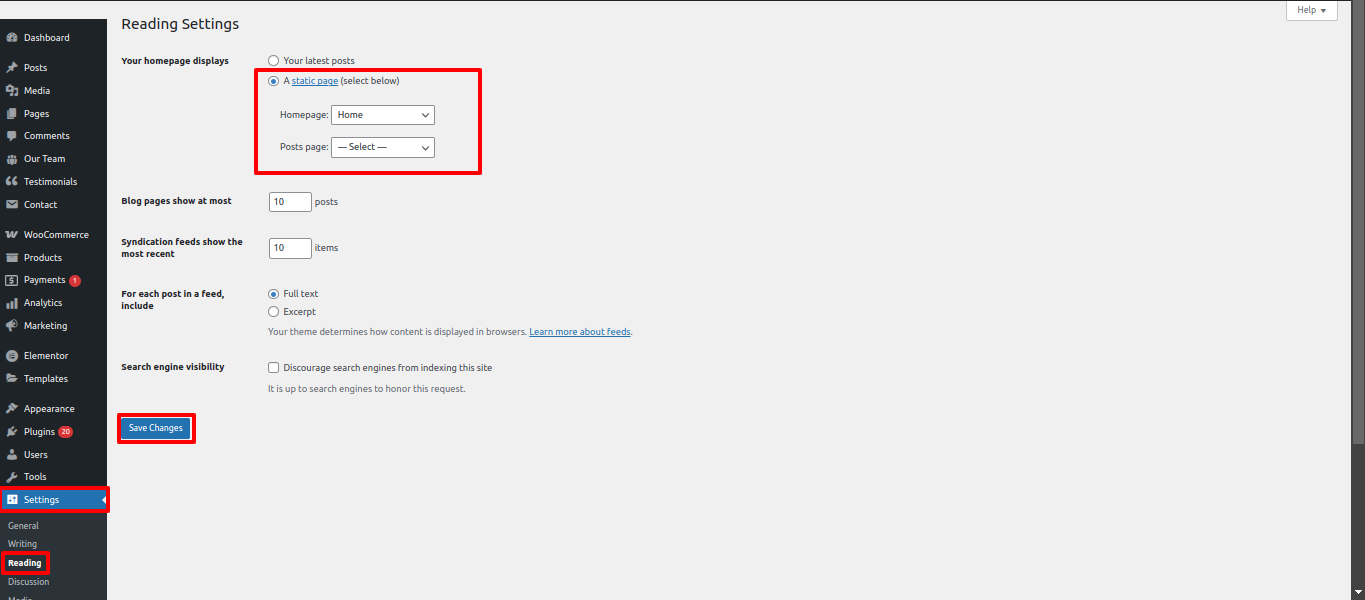
- Decide into Settings > Reading in Your a dashboard on the WordPress platform.
- Under "Your Main Site displays," select Static Page.
- Choose Home as your Main Site.
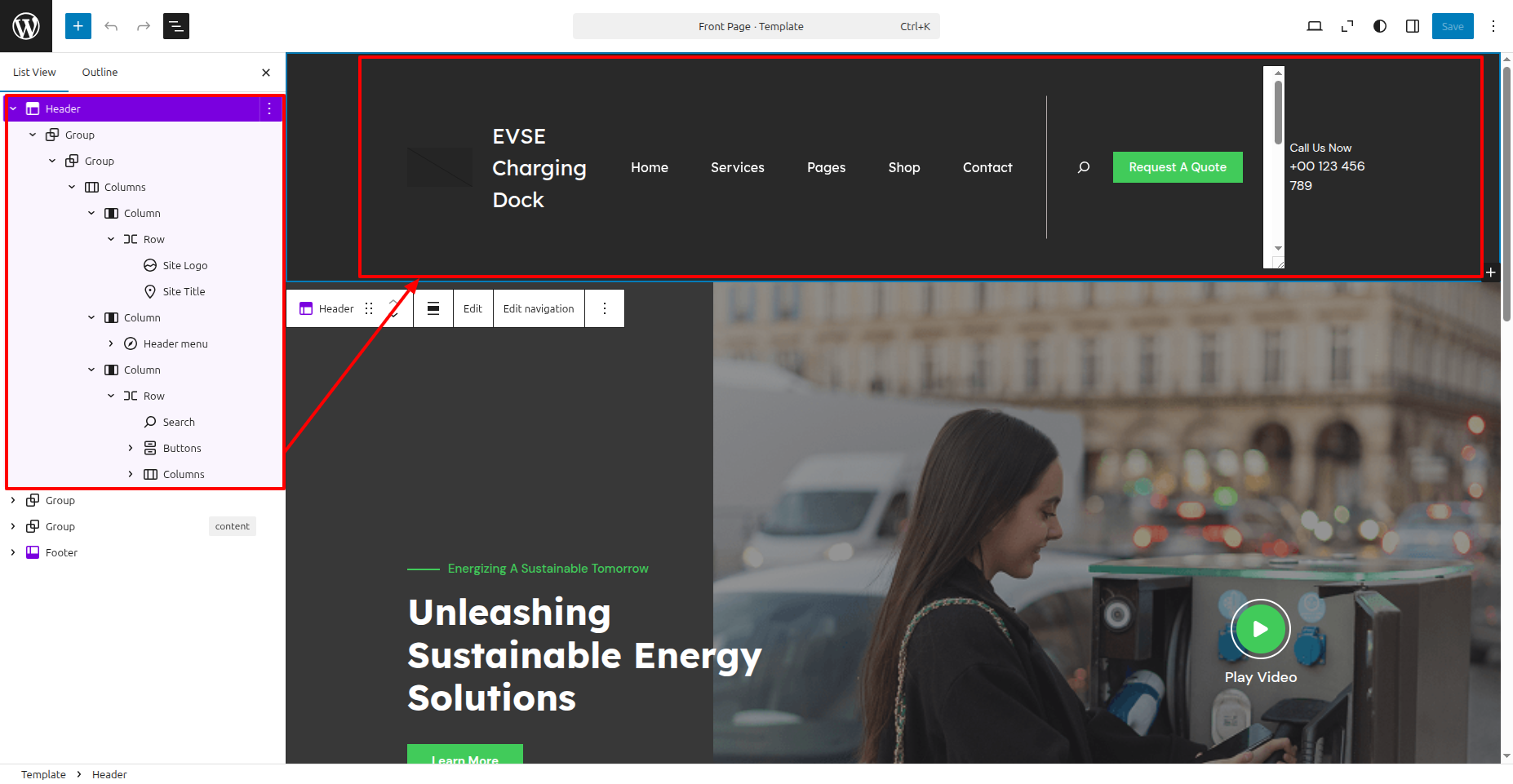
The site header
The top section consists of comprise three essential components. Website headers, crucial for navigation and branding, usually comprise three essential components.. These components help users understand the site and access important areas.:
- The top section area may contain a top bar.
- The site also contains the Site Name and Logo.
- The site contains a Main Menu.

Top Bar
To Edit the top bar of The top section, adhere to the instructions:
- Go to Your a dashboard on the WordPress platform and Decide into Appearance > Editor > Patterns > Header > Click on Header .
- Add your address, email, social media sites, and contact number.
- Click Save to save the changes.
Modifying the Website's Name or Logo
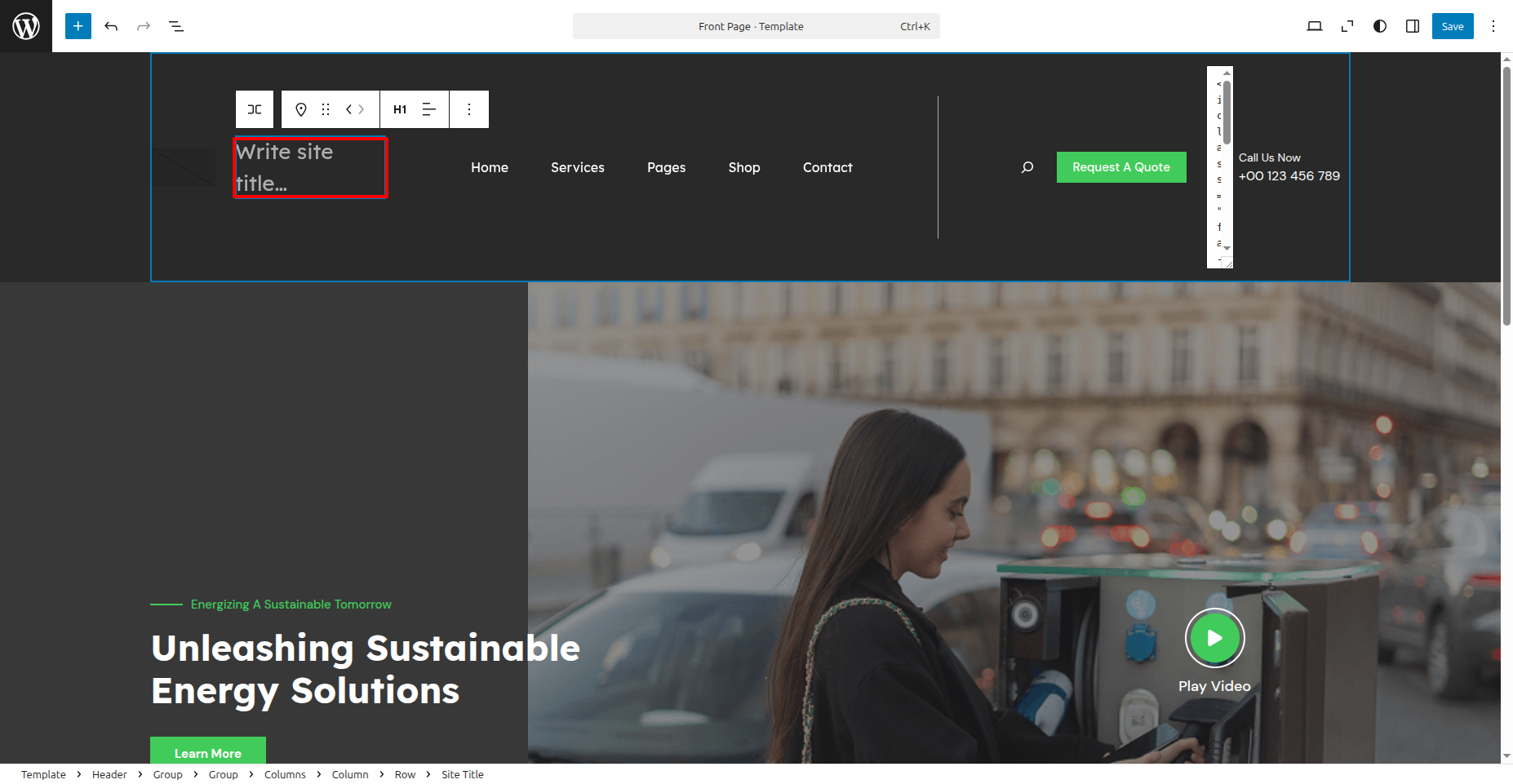
To update The tag line, the logo, and site title adhere to the instructions:
- Go to Your a dashboard on the WordPress platform and Decide into Appearance > Front > Edit Site.
- Write Site Title regarding your website.
- Click Save to Publish your modifications..
c. Managing Menus
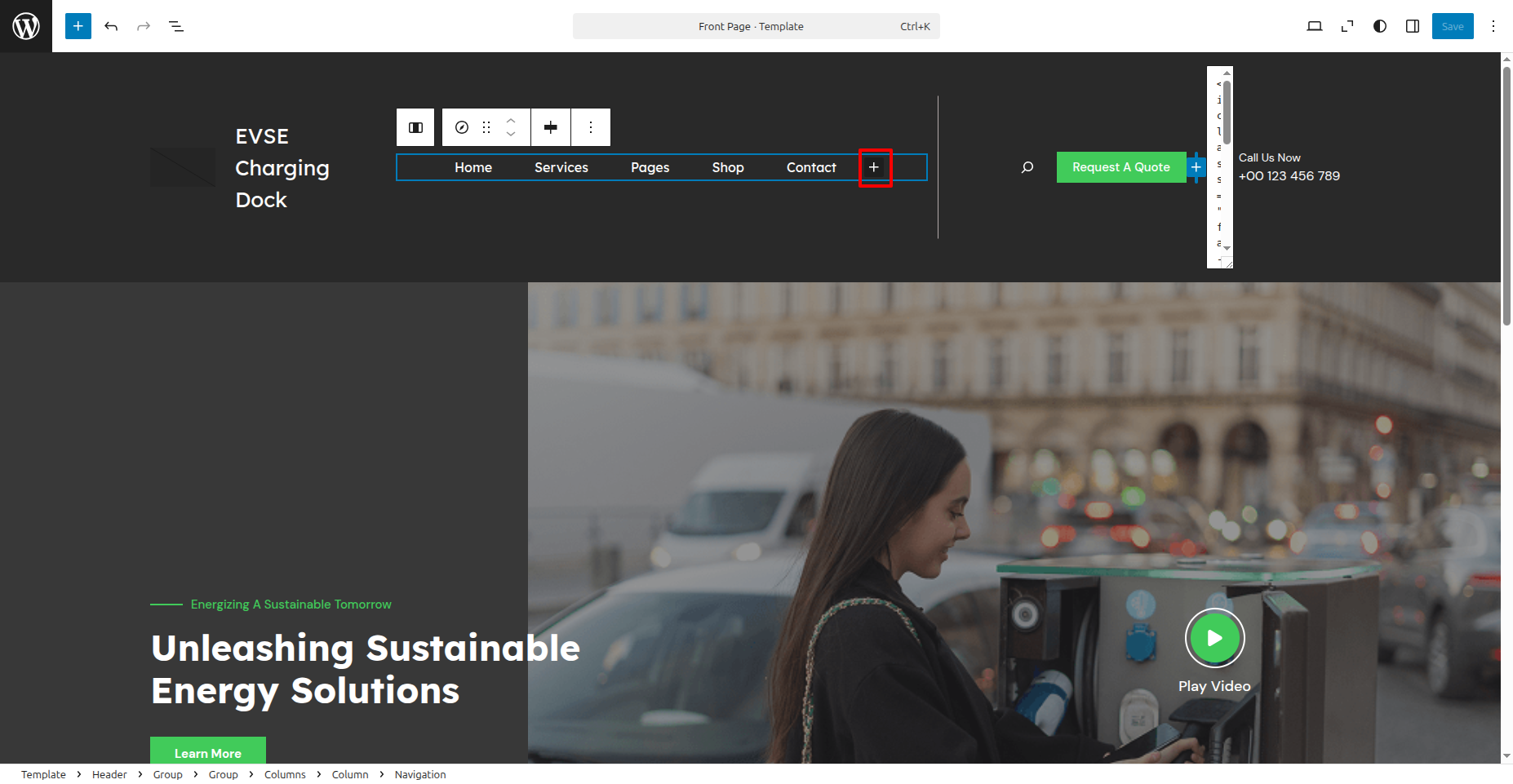
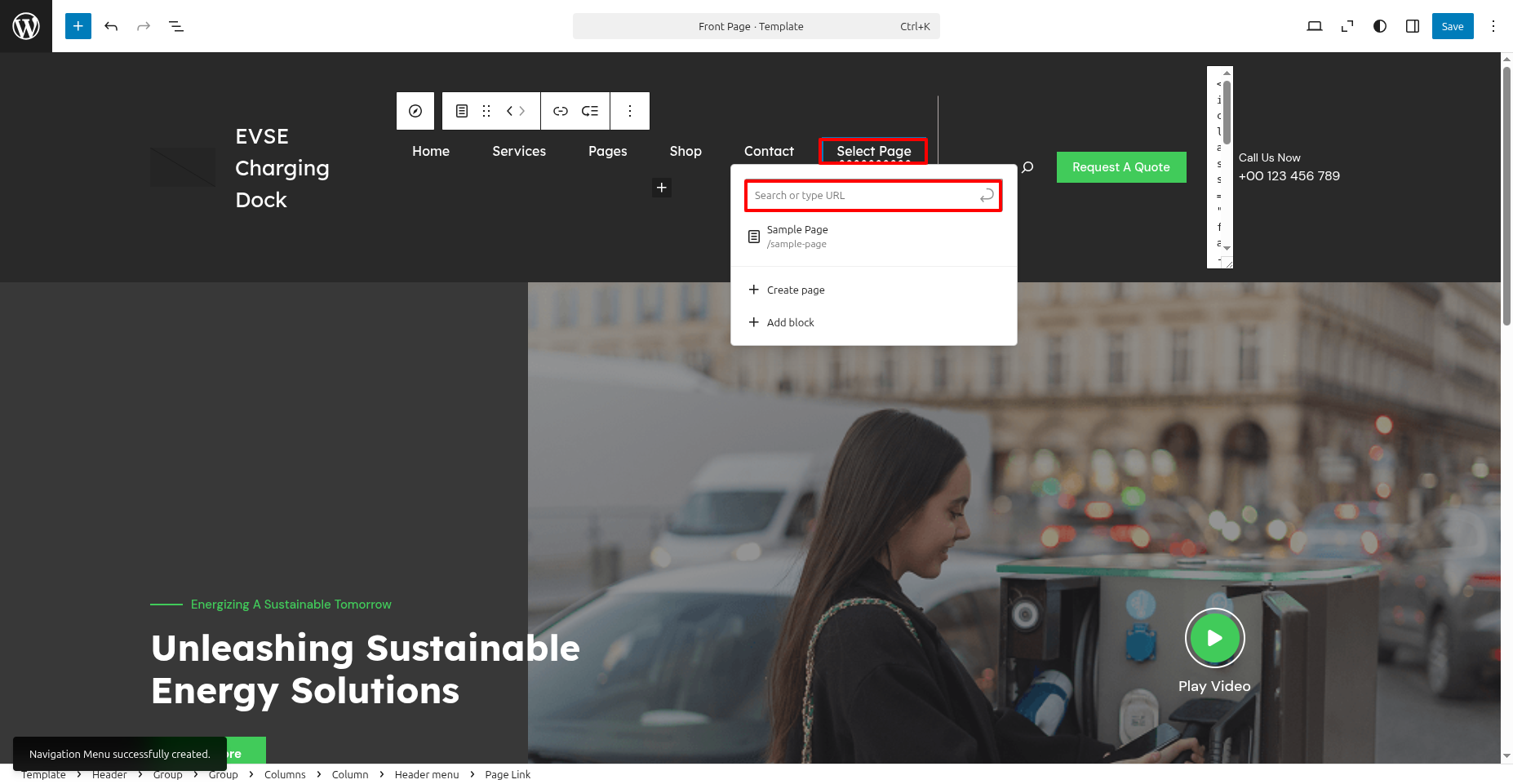
- Go to Your a dashboard on the WordPress platform and Decide into Appearance > Front > Edit Site.
- Should they double click on the navigation, you will see a plus box..
- Should they click on the plus box, an option to Add Links will appear..
Banner
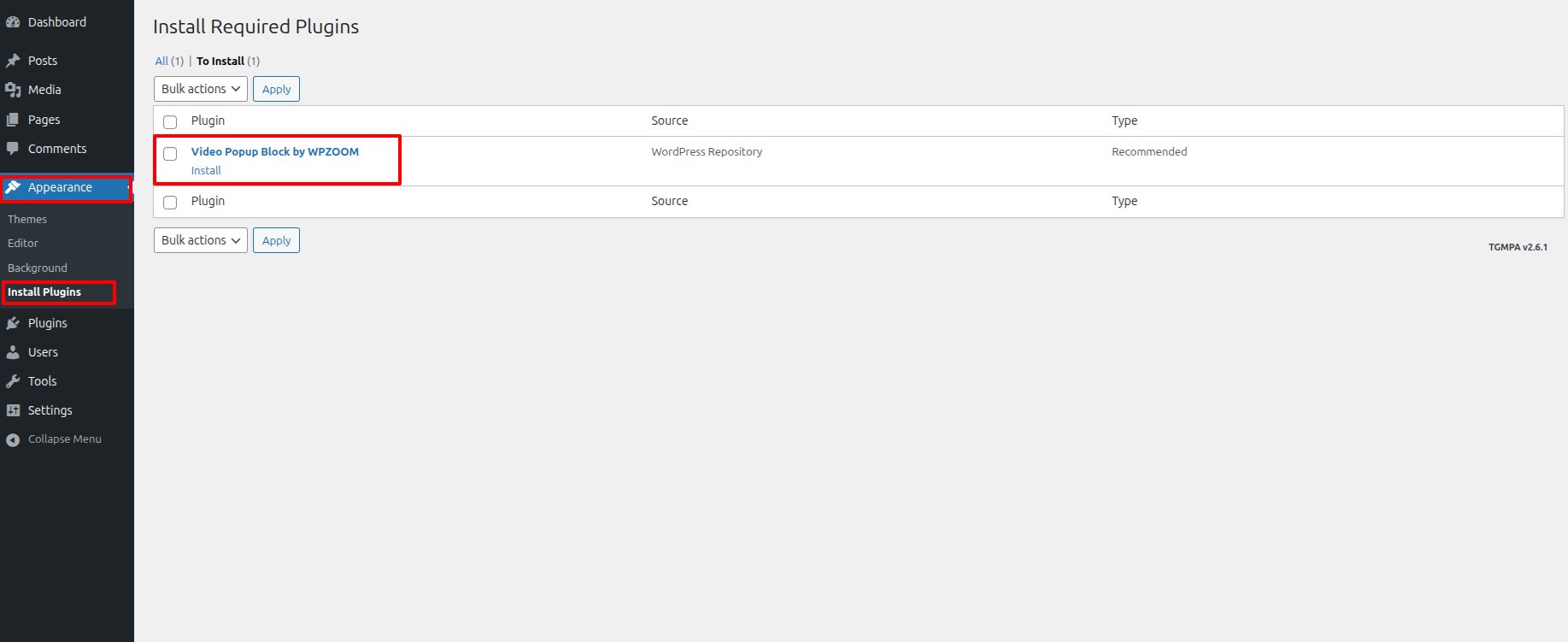
This theme includes a Banner feature. adhere to the instructions. to set it up:
- Go to Your a dashboard on the WordPress platform and Decide into Dashboard > Appearance > Install Plugins.
- Go to Your a dashboard on the WordPress platform and Decide into Appearance > Front > Edit Site.
- Editing is permitted. the title & text in the Banner .
- Click Save to Publish your modifications..
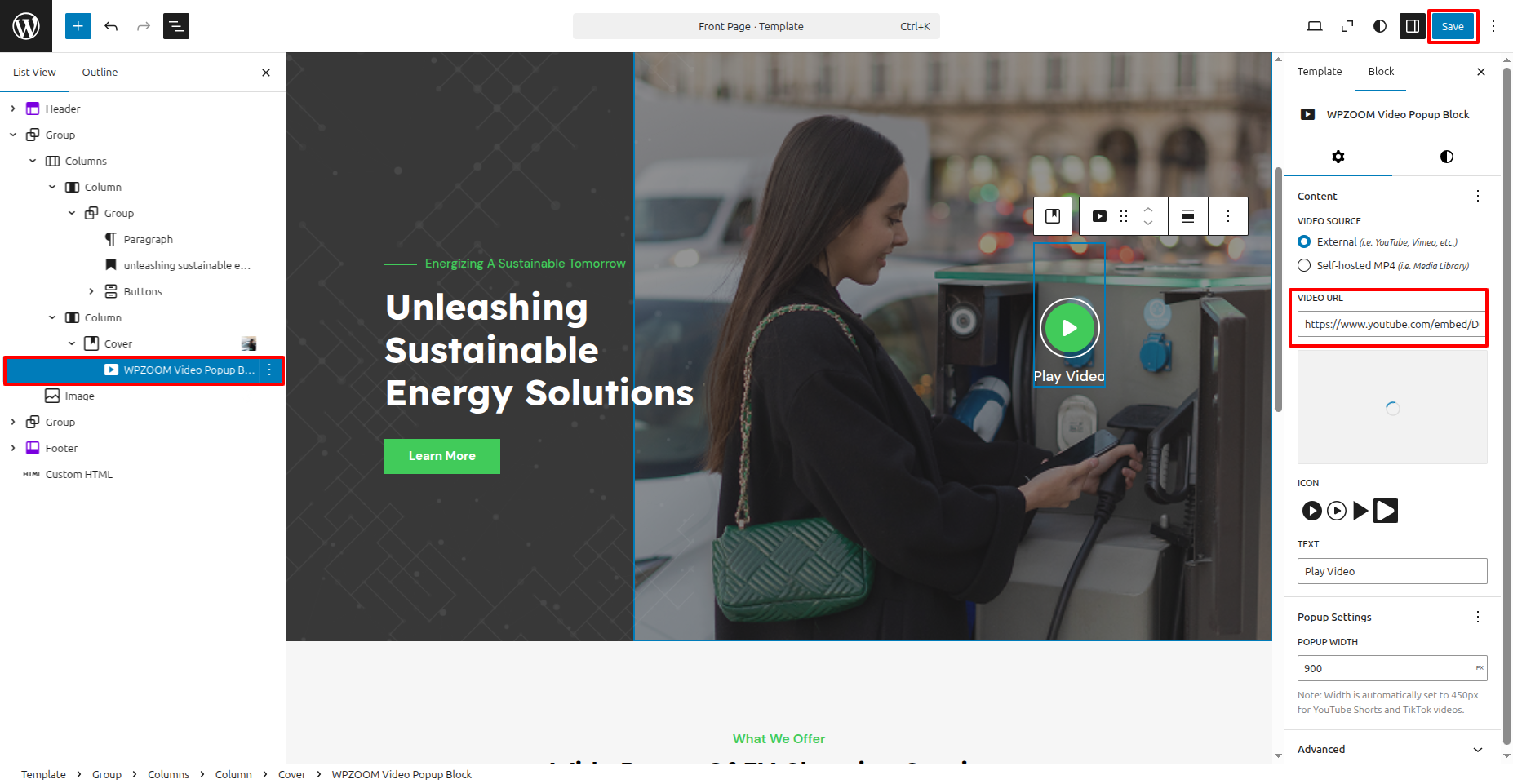
The final appearance will resemble this after saving.

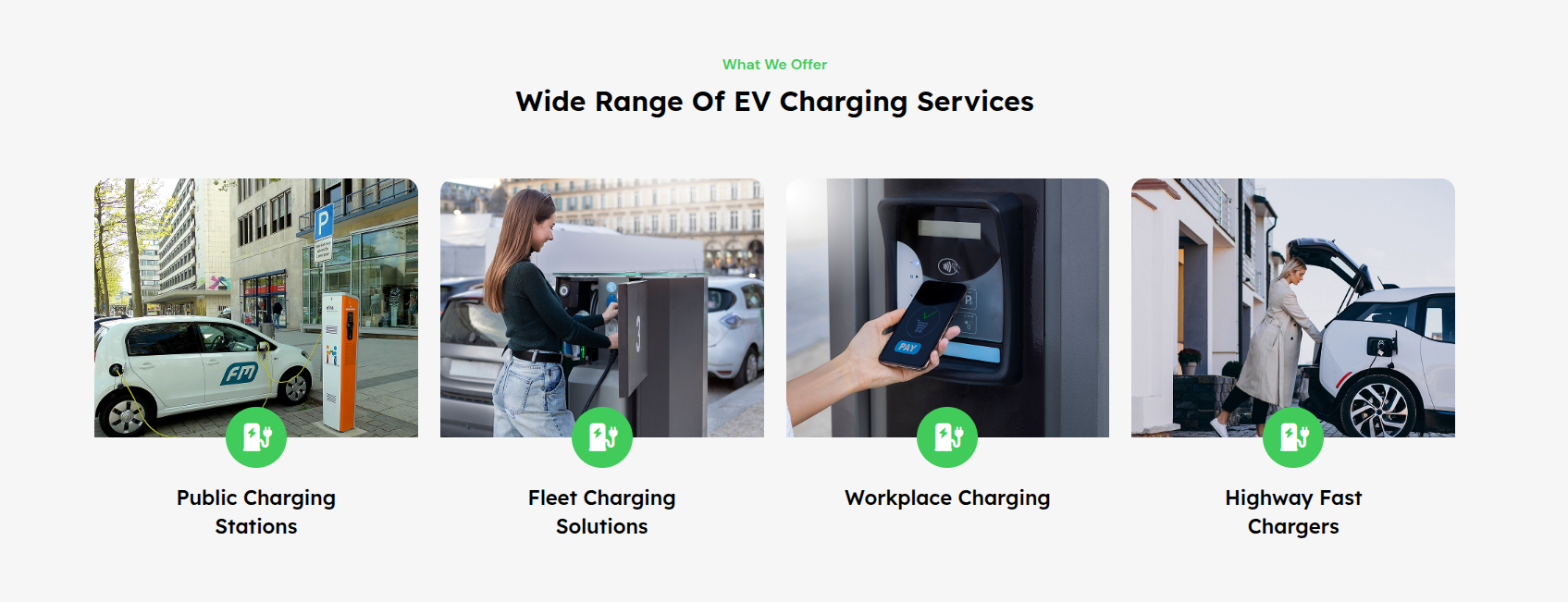
what we offer
This theme includes a what we offer feature. adhere to the instructions. to set it up:
- Go to Your a dashboard on the WordPress platform and Decide into Appearance > Front > Edit Site.
- Editing is permitted. the title & text in the what we offer .
- Click Save to Publish your modifications..
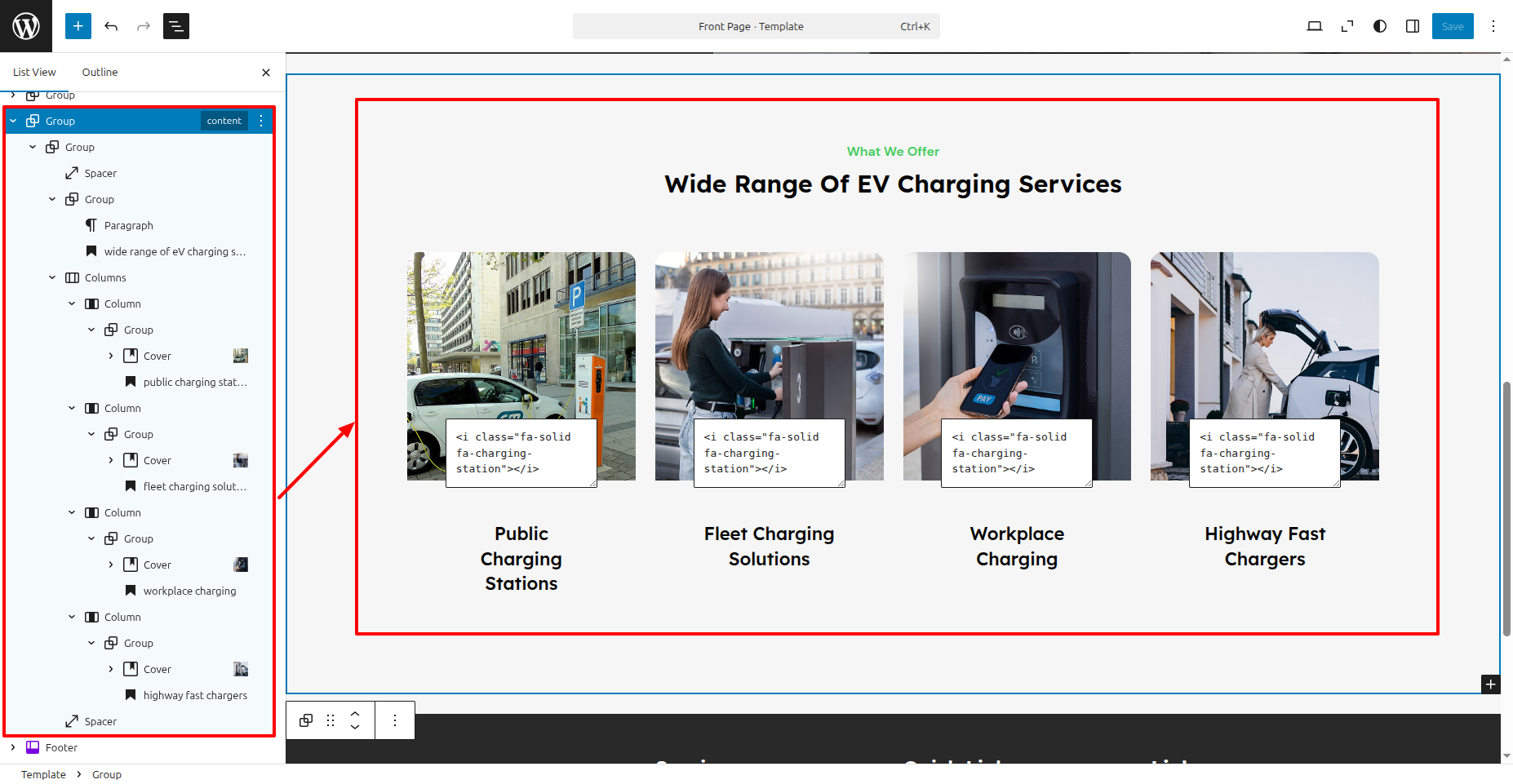
The final appearance will resemble this after saving.
Footer
To Edit the Footer top bar, adhere to the instructions:
- Go to Your a dashboard on the WordPress platform and Decide into Appearance > Editor > Patterns > Footer > Click on Footer .
- Add your Paragraph, Links, social media sites, and etc.
- Click Save to save the changes.
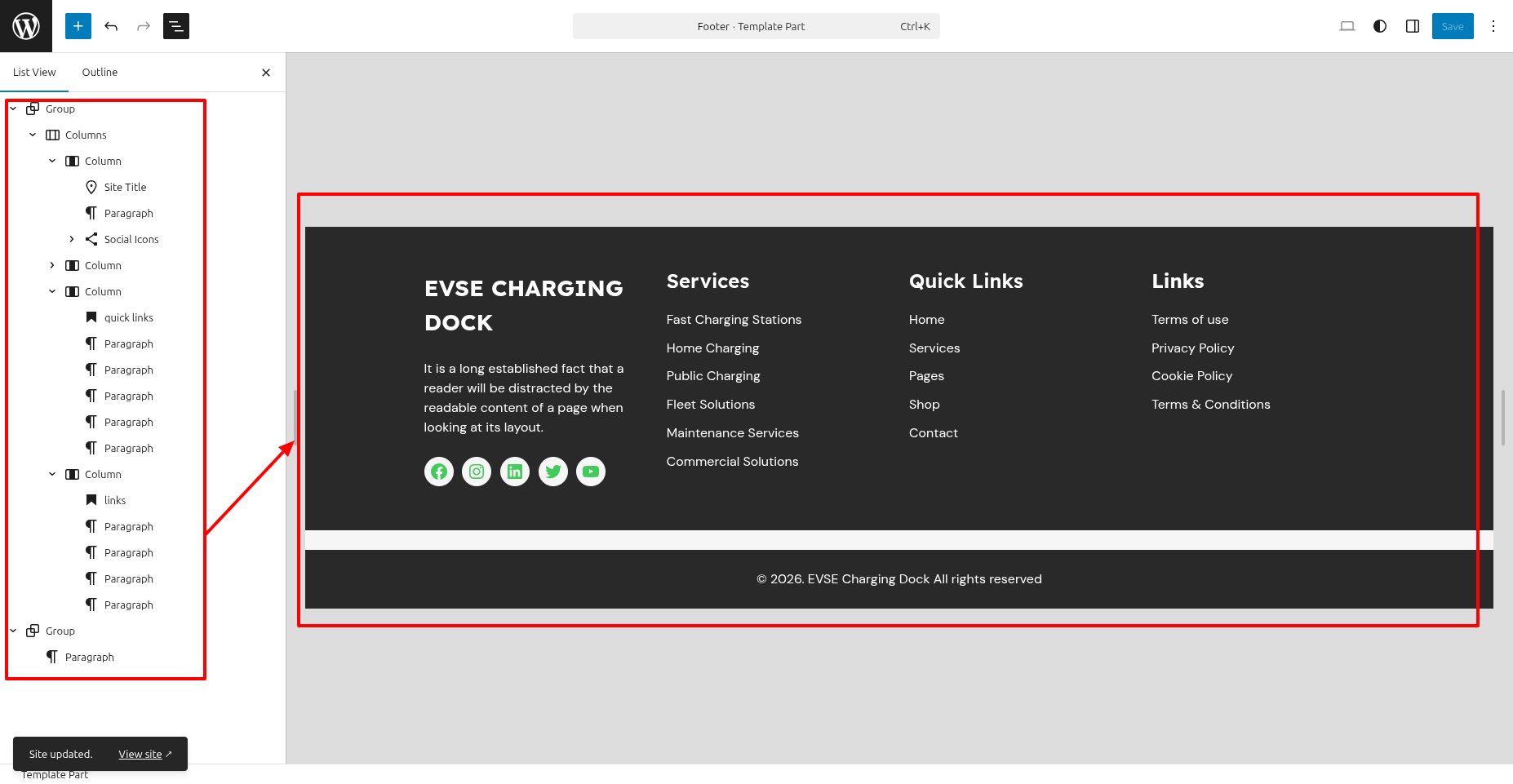
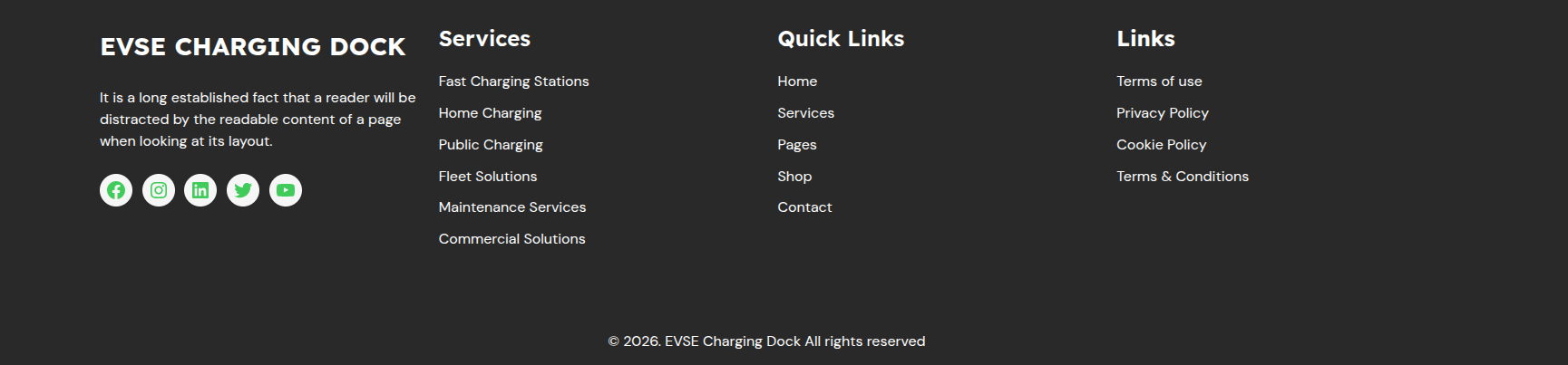
The final appearance will resemble this after saving.